(LGE Only) FOSSLight Scanner Service
Overview
Source, binary and dependency analysis is performed using FOSSLight Scanner as a web service. Analysis results are generated in the form of a FOSSLight Report.
- URL : http://fs.lge.com
- Supported items
- FOSSLight Source Scanner
- FOSSLight Binary Scanner
-
FOSSLight Dependency Scanner
- Supported : npm, pypi, maven, pub, go, nuget, cargo, swift, carthage (Other package managers are currently undergoing verification)
- Not supported items
How to use
Login
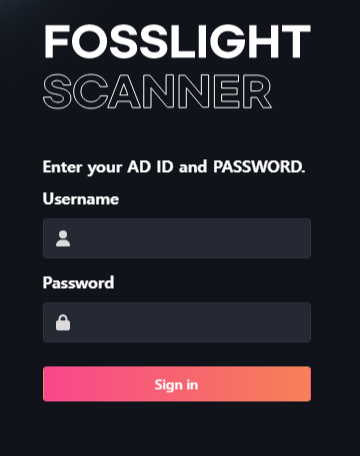
- You can access it by entering your AD account ID and password at http://fs.lge.com
Create a Project
-
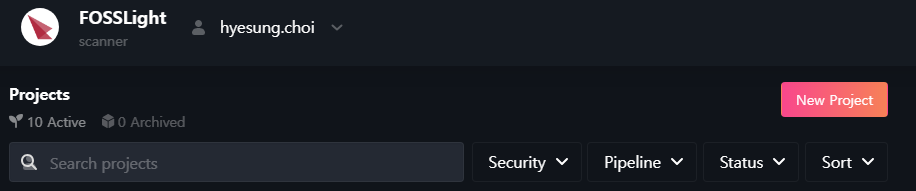
Click the "New Project" button in the upper right corner to create a project.
-
Enter the contents in "Create a Project".
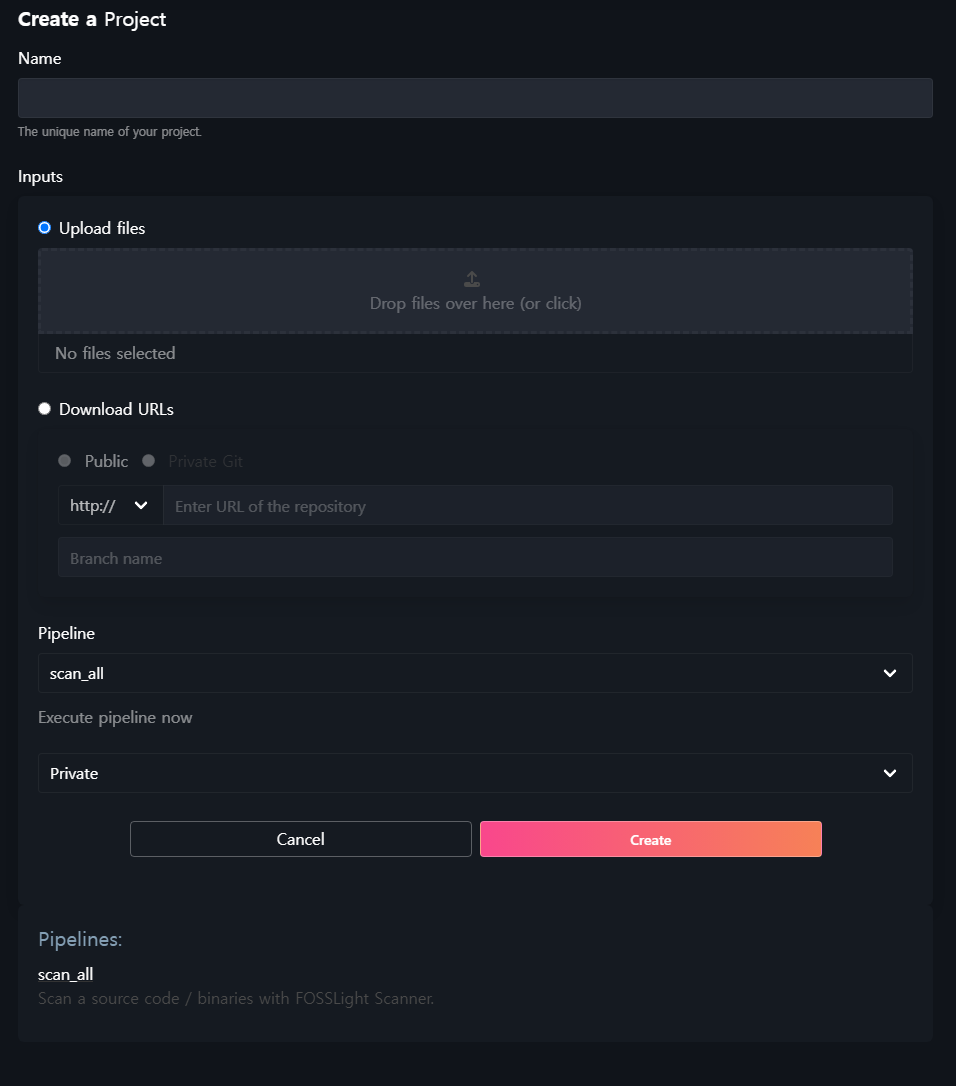
- Name : Enter the Project name.
-
Inputs : Select sources to analyze.
-
Upload files : Compress and upload files to be analyzed. (Please upload only 1 file.)
⚠️ You can upload up to 3GB. -
Download URLs : Enter the source link to be analyzed (link that can be obtained through "wget" or "git clone")
-
Public
- The example of input value
- wget : github.com/LGE-OSS/example/archive/refs/tags/v1.0.0.zip
- git clone : github.com/LGE-OSS/example
- The example of input value
-
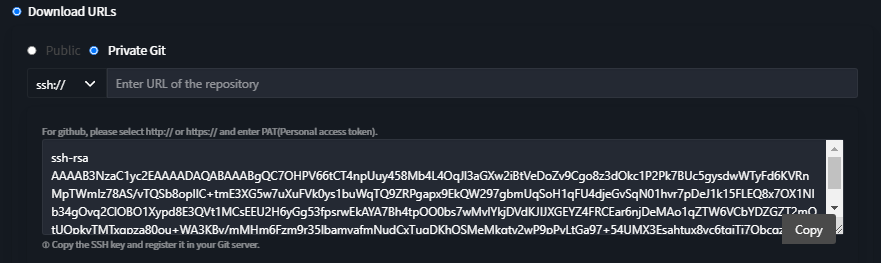
Private Git
- http:// or https:// : You must enter the user name and PAT value.
-
ssh:// : Copy the provided ssh key value and register it in your private git repository. ⚠️ Please use PAT instead of ssh for github.
-
Public
-
Upload files : Compress and upload files to be analyzed. (Please upload only 1 file.)
-
Pipeline
- scan_all : Analyze source, binary, dependency.
- source : Analyze only the source code.
- binary : Analyze only binary.
- dependency : Analyze only dependency.
-
Pipeline options (Optional)
- Analyze dependencies recursively : To analyze dependencies recursively by detecting manifest files in all subdirectories as well as the project's top-level directory, check the ‘Enable recursive analysis' checkbox.
- Package Manager Environment : If you want to use a specific version of a package manager during dependency analysis, select the language or package manager, and then choose your desired version from the version list.
-
Permission
- Private : Only the creator can view.
- Public : Other people can view the project and download analysis results through the link.
Analysis Result
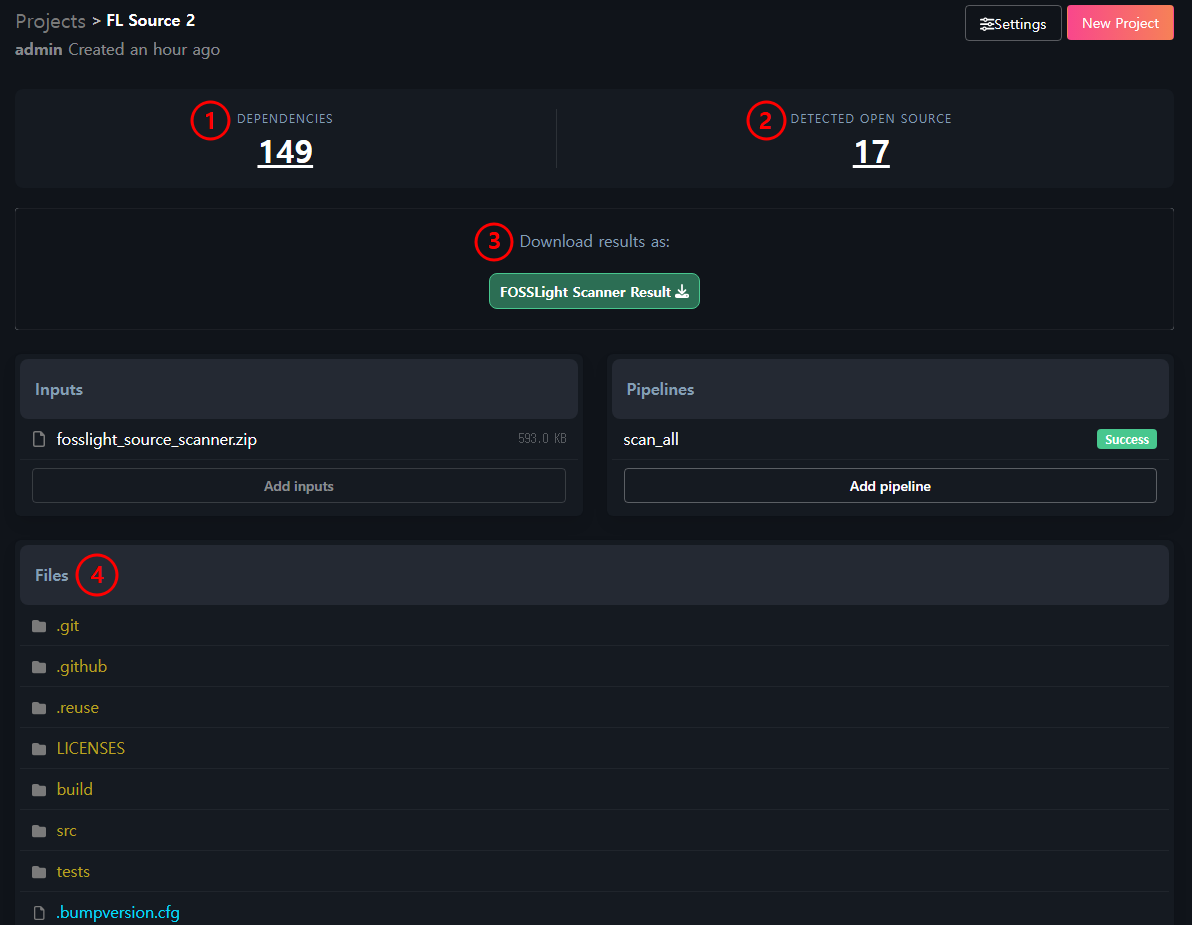
-
Dependency
- The number displayed under Dependency indicates the count of dependency analysis results. Clicking this number allows you to view the list of open source packages detected through dependency analysis.
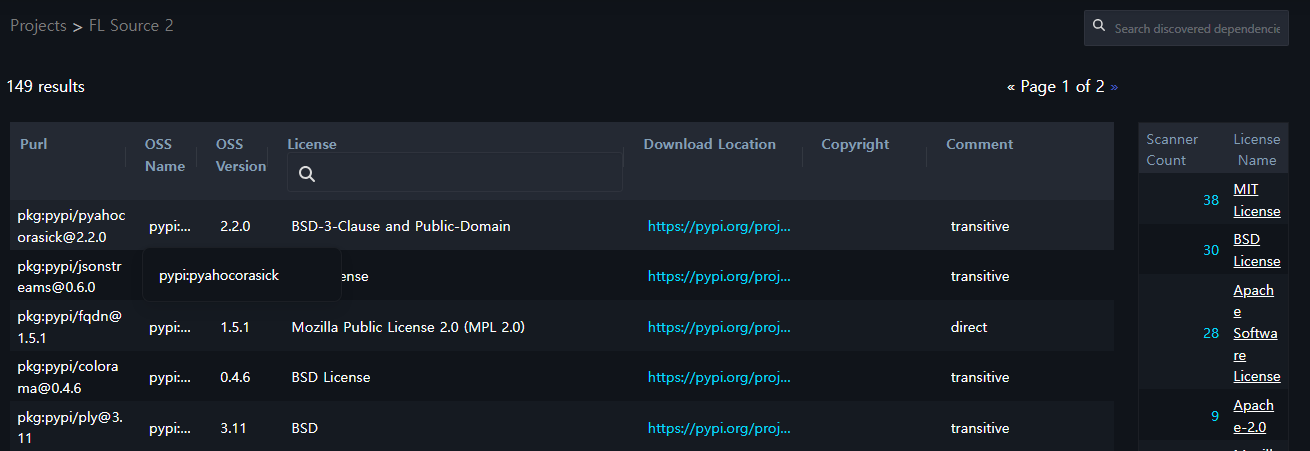
- The number displayed under Dependency indicates the count of dependency analysis results. Clicking this number allows you to view the list of open source packages detected through dependency analysis.
-
Source
- The number displayed under Source indicates the count of source analysis results. Clicking this number allows you to view the list of open source detected through source analysis.
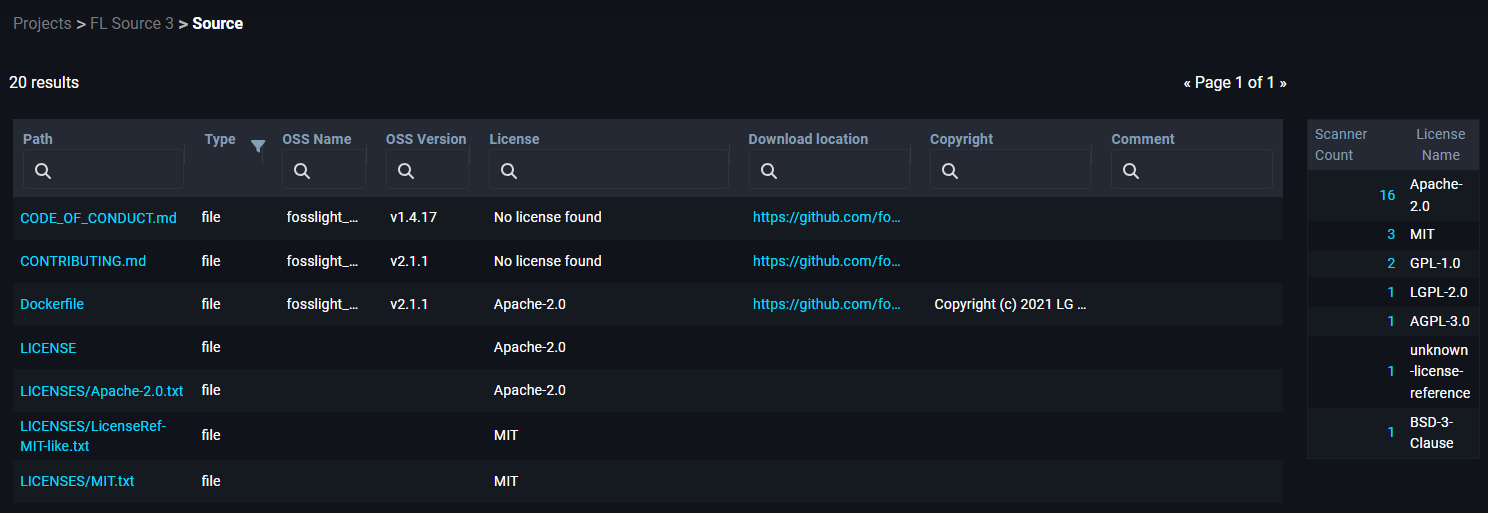
- When you click on the file name in the Path column, you can view the contents of that file.
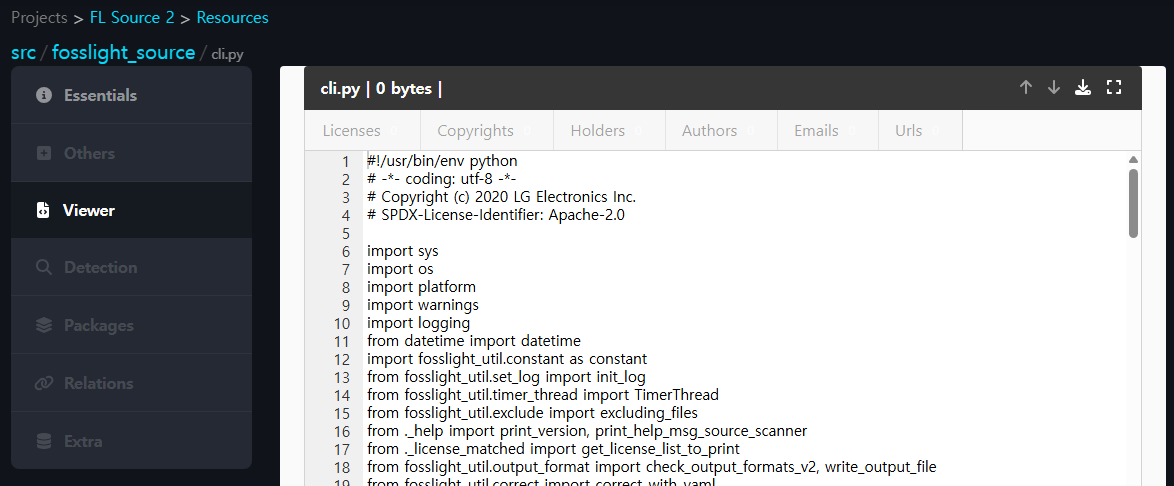
- When you click on the file name in the Path column, you can view the contents of that file.
- The number displayed under Source indicates the count of source analysis results. Clicking this number allows you to view the list of open source detected through source analysis.
-
Binary
- The number displayed under Binary indicates the count of binary analysis results. Clicking this number allows you to view the list of open source detected through binary analysis.
-
Download results
- FOSSLight Scanner Result : You can download the analysis result file in a report format that can be uploaded during the Identification process in FOSSLight Hub.
- AI : You can view an AI-generated summary of the FOSSLight Scanner analysis results, along with risk levels and recommended actions.
- Log : You can download the FOSSLight Scanner execution log file.
-
Files
- You can view the detection results for each analyzed file in File Tree format. (Since these are file-specific detection results, FOSSLight Dependency results are not included)